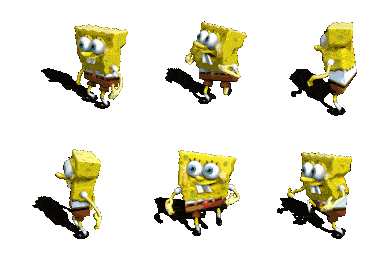
Emoji Animator
Add animated effects like spin and party to the new1 emoji
Try animatorEmoji Maker
Create new emojis based on sets like Noto, Blobs, Twemoji and Fluent 3D
Open makerComments
Share & Embed
To upload the New1 emoji to your Discord server follow these simple steps.Navigate to your server settings
and proceed to click the "emoji" tab, you will notice a blue button that says "upload emoji". Click this button and select the New1 emoji that you just
downloaded from this website. The New1 emoji should now be available for use in your server!
To upload the New1 emoji to your Slack workspace follow these simple steps.Click the arrow beside your workspace
name and select "customize slack". Click "add custom emoji" and select the New1 emoji that you just
downloaded from this website. Choose a name and click saveThe New1 emoji should now be available for use in your slack workspace!
To upload the New1 emoji to your Guilded server follow these simple steps.Navigate to your server settings and proceed to click the "emotes" tab, you will notice a yellow button that says
"upload emote". Click this button and select the New1 emoji that you just downloaded from this website. The New1
emoji should now be available for use in your Guilded server!
To upload the New1 emote to your Twitch channel you need to be an affiliate or partner.Navigate to your creator dashboard and navigate to the settings menu in the left sidebar, click on "affiliate" or "partner" and scroll down to the emotes section. Click an empty emote slot and select the New1 emote that you just downloaded from this website. Fill in all of the require information such as emote name and click submit, then wait for Twitch to review your new emotes!
To add the New1 emoji to Microsoft Teams, follow these steps.
Open a chat or channel and click the Emoji, GIFs and Stickers icon next to the message box, then choose Emoji.
In the bottom right of the emoji panel, select Your orgs emoji (the smiley with a dotted outline), then click the + button to upload. Choose the New1 image you downloaded and give it a name.
Once saved, your custom emoji will appear in the Custom section. You can insert it in messages or use it as a reaction by selecting More reactions and searching for it.
Note: Custom emojis must be enabled by your organisation's Teams settings.
To add the New1 emoji to WeChat as a custom sticker follow these steps.
On mobile (iOS/Android):
1) Download the New1 image (PNG or GIF) to your phone.
2) Open any chat in WeChat and tap the Sticker icon then tap the + (or Custom) tab.
3) Choose Add from Photos (or Upload) and select the downloaded image.
4) Your new sticker will appear in My Stickers.
On desktop (Windows/macOS):
1) Download the New1 image to your computer.
2) In WeChat open a chat and click the Sticker icon then click the gear/settings for stickers.
3) Choose Add Custom Stickers and upload the image.
4) The sticker will be available under My Stickers.

Joined May 2020
Basic License
This license grants you permission to use this emoji on Discord, Slack and any other platform where the user is not charged for access to the emoji.
Uploaded by the community.